Connecting one
Choosing a processor is not the same as connecting it — where the credential lives, and how to check you are actually set up.
Choosing the processor is not the same as connecting it. The credential lives on your workspace's own page:
- Open Workspace, then your organisation.
- Scroll to Payment onboarding at the bottom of the overview. It shows your status and a button naming your processor.

- Press it, paste the credential the page asks for, and save.
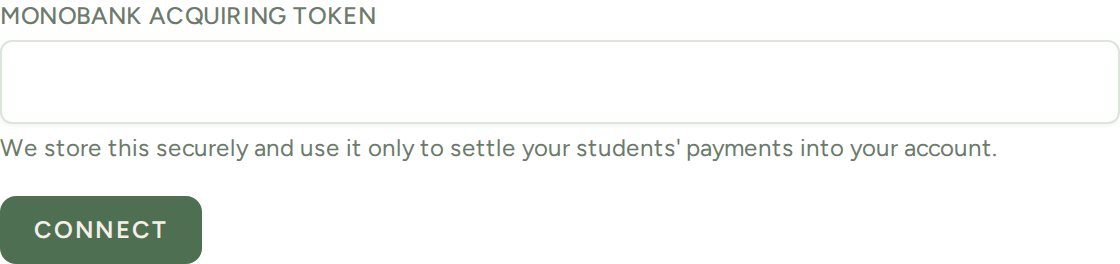
What the page asks for depends on the rail. Monobank takes a single acquiring token from your Monobank business account:
Once something is connected, the same page shows what is connected and lets you disconnect it — so this is also where you check whether you are actually set up:
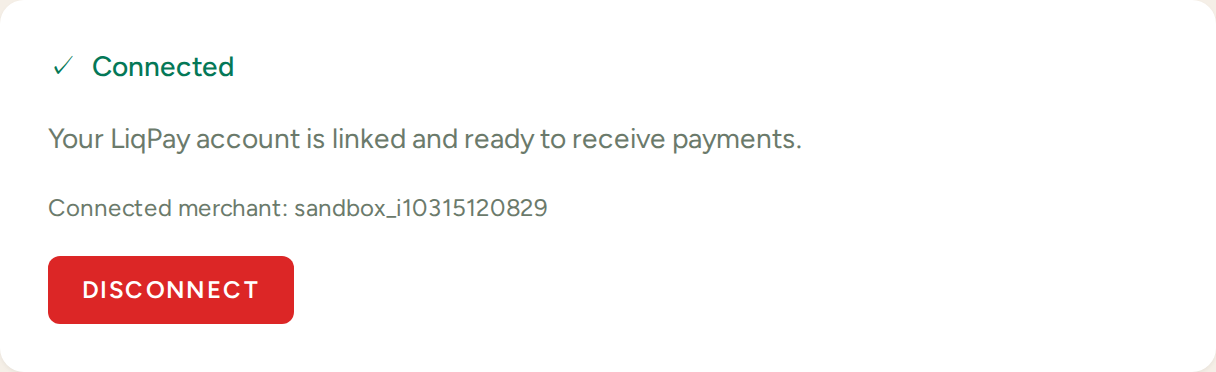
The connection is checked when you save, so a wrong key fails there rather than at a student's checkout.
A rail marked experimental on its connect screen has not yet had a live payment settle through it on this deployment. It will very likely work — but verify with a small real payment of your own before you rely on it for a student's booking.